If your company has its own system (provider ERP, subscriptions, billing), the phone can be answered with its data: the person says their CPF, the AI queries your system (“your plan is Fibra 300, up to date”), sends the 2nd copy via WhatsApp, repairs the connection, sells or opens a ticket.
- 1
Connect your system via the API
Paste the Combot API key into your system. Systems like App Ora configure themselves with it.
- 2
Test the connection
In Integrations, click Test connection on the connected system. The ERP must receive the signed test event and respond correctly. This test does not make a call or create an order.
- 3
Choose who answers on the number itself
Go to AI Phone, open the number's Actions, and under Who answers this number?, choose your ERP. The choice applies only to that line.
- 4
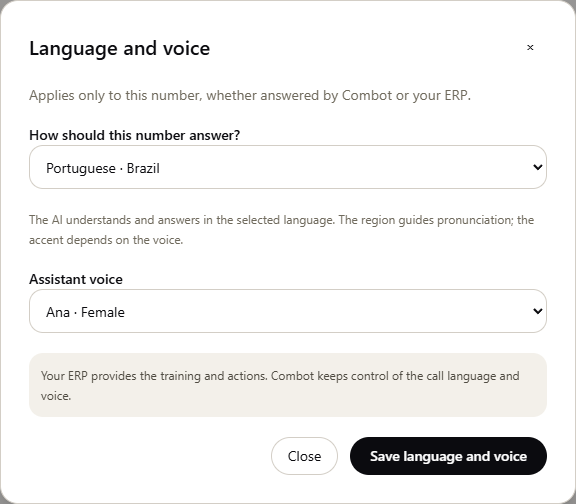
Choose language and voice
Next to the number, open Language and voice. Choose how the AI should understand and respond, such as English or Portuguese, and listen to the voice sample. This setting remains available when the ERP provides the training.
- 5
Train in your system
Training and actions stay in your system. Combot holds the number, language, and voice. The ERP may return your text in another language; the agent must respond in the language chosen for the number.
For developers: the technical step-by-step is in the API documentation, at combot.com.br/docs.
Illustrations with fictional data. No real customer data is used.