Each phone can do a different job. The selection for this number does not automatically change the other numbers of the company.
- 1
Open the number
Go to Phone with AI, open the line you want to configure and choose Combot AI. If your ERP handles the calls, make that choice on the number's own page.
- 2
Choose the job
Select Book an appointment for services with a calendar or Sell to record product orders.
- 3
Select the calendar
In scheduling, open this number's calendars and check the unit that should receive the appointments. Also check the professionals and business hours in Calendar → Configure.
- 4
Open the services or products
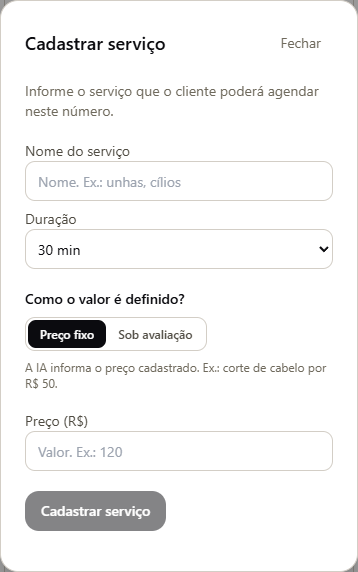
Expand Services for this number or Products for this number. Select the items the AI can offer. Registering a new item opens in a window, without leaving loose fields on the page.
- 5
Check the price and duration
In a salon, use Fixed price and enter the service amount. In a workshop, use Under evaluation when the price depends on inspecting the vehicle. The AI must not make up values. The duration is used to find an available time.
- 6
Choose who receives the messages
In Where it goes, choose the WhatsApp that sends the messages and the team recipients. Enable confirmation for the customer when you want. The company number that sends is different from the customer's WhatsApp that receives.
- 7
Train, save and check
In Build with AI or in the training, describe the company in writing or by microphone. Review the greeting, the hours, the services and the messages. Save and make a test call from another phone.
Add a service
Add a product
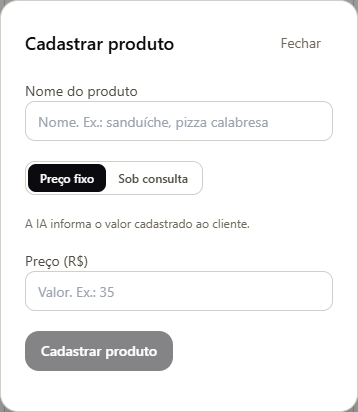
Illustrations with fictional data. No real customer data is used.